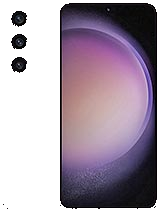
The Samsung Galaxy S23 is a powerhouse of features, and one of its most useful capabilities is the ability to record your screen. Whether you’re creating tutorials, capturing gameplay, or simply preserving important information, knowing how to screen record on Samsung Galaxy S23 is essential. This comprehensive guide will walk you through every aspect of screen recording on your Galaxy S23, covering the built-in screen recorder, advanced settings, troubleshooting tips, and alternative methods. We’ll also delve into best practices for creating high-quality screen recordings and explore related topics to enhance your understanding. By the end of this article, you’ll be a screen recording pro, ready to capture anything and everything on your device’s display. So, let’s dive in and unlock the full potential of screen recording on your Samsung Galaxy S23!
Understanding the Basics of Screen Recording on Samsung Galaxy S23
Screen recording has become an indispensable tool for various purposes. From creating how-to guides to capturing memorable moments, the ability to record your screen offers unparalleled convenience. Before we delve into the specifics of the Galaxy S23, let’s establish a foundation of basic screen recording concepts.
- What is Screen Recording? Screen recording, also known as screencasting, is the process of capturing a video of your device’s screen. This video can include everything displayed on the screen, including apps, animations, and user interactions.
- Why Use Screen Recording? Screen recording has numerous applications:
- Creating tutorials and how-to guides
- Capturing gameplay footage
- Documenting app behavior for bug reporting
- Preserving important information or conversations
- Sharing visual demonstrations with others
- Screen Recording on Android: Android has offered native screen recording capabilities for several years, making it easy for users to capture their screen without relying on third-party apps. Samsung’s One UI enhances this functionality with additional features and customization options.
Accessing the Built-In Screen Recorder on Samsung Galaxy S23
The Samsung Galaxy S23 comes equipped with a built-in screen recorder, making it incredibly easy to capture your screen. Here’s how you can access it:
- Using the Quick Settings Panel: The easiest way to access the screen recorder is through the Quick Settings panel.
- Swipe Down: Swipe down from the top of your screen to open the notification shade.
- Swipe Down Again: Swipe down again to expand the Quick Settings panel.
- Locate Screen Recorder: Look for the “Screen recorder” icon. If you don’t see it, swipe left to view additional Quick Settings options.
- Tap the Icon: Tap the “Screen recorder” icon to launch the screen recording tool.
- Using Bixby Voice Command: If you have Bixby set up, you can use a voice command to start screen recording.
- Activate Bixby: Say “Hi Bixby” or press and hold the side button to activate Bixby.
- Give the Command: Say “Start screen recording.” Bixby will initiate the screen recorder.
Configuring Screen Recording Settings on Samsung Galaxy S23
Before you start screen record on Samsung Galaxy S23, it’s essential to configure the settings to match your specific needs. Samsung’s One UI offers several customizable options. Here’s how to access and configure these settings:
- Accessing Screen Recorder Settings:
- Open Settings: Go to the Settings app on your Samsung Galaxy S23.
- Advanced Features: Scroll down and tap on “Advanced features.”
- Screenshots and Screen Recorder: Tap on “Screenshots and screen recorder.”
- Screen Recorder Settings: Here, you’ll find various settings to customize your screen recording experience.
Available Screen Recording Settings:
- Sound Options:
- Mute: Records the screen without any audio.
- Media sounds: Records only the audio from your device, such as music, app sounds, or game audio.
- Media sounds and mic: Records both the audio from your device and your voice through the microphone. This is ideal for tutorials where you need to provide commentary.
- Video Quality:
- Resolution: Choose from different resolutions, such as 720p, 1080p, or even higher, depending on your device. Higher resolutions provide better video quality but also result in larger file sizes.
- Bitrate: Some devices allow you to adjust the video bitrate, which affects the video quality and file size. Higher bitrates result in better quality but larger files.
- Show Taps and Touches:
- Enable/Disable: This option allows you to display visual cues when you tap or touch the screen. It’s helpful for tutorials, as it makes it easier for viewers to follow your actions.
- Selfie Video Size:
- Adjust Size: If you choose to record yourself using the front-facing camera, you can adjust the size of the selfie video overlay.
Step-by-Step Guide to Recording Your Screen on Samsung Galaxy S23
Now that you understand the basics and have configured your settings, let’s walk through the process of recording your screen on the Samsung Galaxy S23:
- Prepare Your Screen:
- Navigate to the Content: Open the app or screen you want to record and ensure it’s ready to go.
- Disable Notifications: To avoid interruptions, turn on “Do Not Disturb” mode or temporarily disable notifications for the apps you’ll be using.
- Start the Screen Recorder:
- Access Quick Settings: Swipe down from the top of the screen to open the Quick Settings panel.
- Tap Screen Recorder: Tap the “Screen recorder” icon.
- Choose Sound Options:
- Select Audio Source: A pop-up will appear asking you to choose your desired sound settings (Mute, Media sounds, or Media sounds and mic).
- Confirm Selection: Tap “Start recording” to begin.
- Recording in Progress:
- Control Toolbar: A small toolbar will appear on your screen, allowing you to control the recording. This toolbar typically includes:
- Pause Button: Pauses the recording.
- Stop Button: Stops the recording.
- Pen Button: Allows you to draw on the screen.
- Selfie Button: Activates the front-facing camera to record yourself.
- Record Your Actions: Perform the actions you want to capture on your screen.
- Control Toolbar: A small toolbar will appear on your screen, allowing you to control the recording. This toolbar typically includes:
- Stop the Recording:
- Tap Stop: Tap the “Stop” button on the control toolbar to end the recording.
- Save the Video: The recording will be automatically saved to your Gallery app.
Advanced Tips and Tricks for Screen Recording
To take your screen record on Samsung Galaxy S23 to the next level, consider these advanced tips and tricks:
- Using the Pen Tool:
- Annotate in Real-Time: The pen tool allows you to draw on the screen while recording. This is perfect for highlighting specific areas or providing visual explanations during tutorials.
- Change Colors: You can usually change the color of the pen to make your annotations stand out.
- Recording a Reaction Video:
- Enable Selfie Mode: Use the selfie button to activate the front-facing camera. This allows you to record your reactions and commentary while capturing the screen.
- Adjust Placement: You can usually move the selfie video overlay to different corners of the screen to avoid obstructing important content.
- Optimizing Audio Quality:
- Use an External Microphone: For professional-quality audio, consider using an external microphone. You can connect a microphone via the USB-C port or Bluetooth.
- Record in a Quiet Environment: Minimize background noise by recording in a quiet room.
- Editing Your Recordings:
- Trim Unnecessary Footage: Use the built-in video editor in the Gallery app to trim the beginning and end of your recordings.
- Add Annotations and Text: Enhance your recordings by adding text overlays, annotations, and other visual elements using a video editing app.
Troubleshooting Common Screen Recording Issues
While the screen recording feature on the Samsung Galaxy S23 is generally reliable, you may encounter some issues. Here’s how to troubleshoot common problems:
- Screen Recorder Icon Missing:
- Edit Quick Settings: Swipe down to access the Quick Settings panel, tap the three dots (menu), and select “Edit buttons.” Look for the “Screen recorder” icon and drag it to your active Quick Settings.
- Restart Your Device: Sometimes, a simple restart can resolve missing icons or features.
- No Sound During Recording:
- Check Sound Settings: Ensure that you have selected the correct sound option (Media sounds or Media sounds and mic) in the screen recorder settings.
- Check App Permissions: Some apps may require specific permissions to record audio. Go to Settings > Apps, find the app you’re recording, and check its permissions.
- Poor Video Quality:
- Adjust Video Quality: Increase the video resolution in the screen recorder settings. Keep in mind that higher resolutions will result in larger file sizes.
- Ensure Sufficient Storage: Low storage space can affect video quality. Make sure you have enough free space on your device.
- Screen Recorder Not Working in Certain Apps:
- Copyright Restrictions: Some apps may block screen recording due to copyright restrictions. This is common with streaming services and other content-protected apps.
- App Compatibility: Some apps may not be fully compatible with the screen recorder. Try using a different screen recording app or method.
- Laggy or Choppy Recordings:
-
- Close Background Apps: Close any unnecessary apps running in the background to free up system resources.
- Reduce Screen Brightness: High screen brightness can strain your device’s resources. Reduce the brightness while recording.
-
Alternative Screen Recording Apps for Samsung Galaxy S23
While the built-in screen recorder is excellent, alternative apps offer additional features and customization options. Here are some popular screen recording apps for the Samsung Galaxy S23:
-
- AZ Screen Recorder: A popular choice with no root required, AZ Screen Recorder offers features like video trimming, screen drawing, and the ability to record internal audio.
- XRecorder: Known for its clean interface and powerful editing tools, XRecorder allows you to record with different resolutions and bitrates, and offers features like face cam recording and brush tools.
- ADV Screen Recorder: ADV Screen Recorder provides two recording engines, allowing you to choose the one that works best for your device. It also offers features like custom text and banner overlays.
- Screen Recorder – No Ads: This app is a simple and straightforward screen recorder with no ads, making it a great option for users who want a clean and hassle-free experience.
- DU Recorder: While it’s no longer actively maintained, DU Recorder is still a functional option with features like video editing, live streaming, and customizable recording settings. Be cautious when downloading it and ensure you get it from a trusted source.
Legal and Ethical Considerations for Screen Recording
Before you screen record on Samsung Galaxy S23, it’s essential to consider the legal and ethical implications. Screen recording can sometimes involve capturing sensitive information or violating privacy, so it’s important to be aware of the rules and regulations.
- Privacy Laws:
- Consent: In many jurisdictions, it’s illegal to record someone without their consent. If you’re recording a conversation or capturing personal information, make sure you have the explicit permission of all parties involved.
- Data Protection: Be mindful of data protection laws like GDPR or CCPA, which regulate the collection and use of personal data. Avoid recording or sharing sensitive information without proper authorization.
- Copyright Laws:
- Content Protection: Many streaming services and apps use DRM (Digital Rights Management) to protect copyrighted content. Recording these services may be illegal and could result in legal penalties.
- Fair Use: In some cases, you may be able to record copyrighted material under the “fair use” doctrine. This typically applies to educational, journalistic, or transformative purposes. However, the boundaries of fair use can be complex, so it’s best to consult with a legal professional if you’re unsure.
- Ethical Considerations:
- Transparency: Be transparent about your intentions when recording someone. Let them know why you’re recording and how the footage will be used.
- Respect: Respect the privacy and dignity of others. Avoid recording or sharing footage that could be embarrassing, harmful, or discriminatory.
Best Practices for Creating High-Quality Screen Recordings
To create professional-looking screen recordings, follow these best practices:
- Plan Your Content:
- Outline: Create an outline or script before you start recording. This will help you stay focused and ensure that you cover all the key points.
- Practice: Practice your presentation or demonstration before recording. This will help you avoid mistakes and make your recording more polished.
- Optimize Your Device:
-
- Close Background Apps: Close any unnecessary apps running in the background to free up system resources and prevent lag.
- Disable Notifications: Turn on “Do Not Disturb” mode or temporarily disable notifications to avoid interruptions.
- Charge Your Battery: Ensure your device has sufficient battery life to avoid unexpected shutdowns during recording.
-
- Record in a Quiet Environment:
- Minimize Noise: Choose a quiet room with minimal background noise. Close windows and doors to reduce external sounds.
- Use a Microphone: Use an external microphone for better audio quality. Position the microphone close to your mouth but out of the camera’s view.
- Edit Your Recordings:
- Trim Unnecessary Footage: Use a video editing app to trim the beginning and end of your recordings. Remove any mistakes, pauses, or irrelevant content.
- Add Annotations and Text: Enhance your recordings by adding text overlays, annotations, and other visual elements. This can help clarify your message and make your recording more engaging.
- Adjust Audio Levels: Normalize the audio levels to ensure consistent sound quality throughout the recording. Remove any background noise or distractions.
Integrating Screen Recordings into Your Workflow
Screen recordings can be seamlessly integrated into various workflows, whether for professional, educational, or personal use.
- Creating Tutorials:
- Software Demonstrations: Use screen recordings to demonstrate how to use software, apps, or online tools. Provide clear and concise instructions, and highlight key features and functions.
- Technical Support: Create screen recordings to guide users through troubleshooting steps or explain complex processes. This can be more effective than written instructions.
- Educational Content:
- Online Courses: Incorporate screen recordings into online courses to illustrate concepts, demonstrate techniques, or provide step-by-step tutorials.
- Presentations: Use screen recordings to enhance presentations with visual demonstrations, software demos, or interactive elements.
- Gaming and Entertainment:
- Gameplay Recording: Capture your gaming sessions to share highlights, create walkthroughs, or provide commentary.
- Reaction Videos: Record your reactions to games, videos, or other content. Add a selfie video overlay to capture your facial expressions and commentary.
- Business and Professional Use:
- Product Demos: Create screen recordings to showcase products or services. Highlight key features, benefits, and use cases.
- Training Materials: Develop training materials for employees or clients. Use screen recordings to demonstrate processes, procedures, or software applications.
The Future of Screen Recording Technology
Screen recording technology is continually evolving, with new features and capabilities emerging all the time. Here are some trends to watch for in the future:
- AI-Powered Features:
- Automatic Editing: AI could automate the editing process, identifying and removing mistakes, pauses, and irrelevant content.
- Smart Annotations: AI could suggest relevant annotations and text overlays based on the content being recorded.
- Noise Reduction: AI could automatically reduce background noise and improve audio quality.
- Enhanced Collaboration:
- Real-Time Collaboration: Multiple users could collaborate on screen recordings in real-time, adding annotations, comments, and feedback.
- Cloud Integration: Seamless integration with cloud storage and collaboration platforms would make it easier to share and manage screen recordings.
- Advanced Security:
- Encryption: Enhanced encryption features would protect sensitive screen recordings from unauthorized access.
- Watermarking: Watermarking tools would allow users to add unique identifiers to their screen recordings, preventing unauthorized use or distribution.
Summary
Knowing how to screen record on Samsung Galaxy S23 is a valuable skill that can enhance your productivity, creativity, and communication. The built-in screen recorder offers a convenient and powerful way to capture your screen, with customizable settings and features to suit your needs. By following the steps and tips outlined in this guide, you can create high-quality screen recordings for tutorials, presentations, gaming, or any other purpose. Remember to consider the legal and ethical implications of screen recording and always respect the privacy and rights of others. As technology continues to evolve, screen recording tools will become even more sophisticated, offering new possibilities for capturing and sharing information.
FAQ
- Q: How do I access the screen recorder on my Samsung Galaxy S23?
- A: You can access the screen recorder through the Quick Settings panel by swiping down from the top of the screen and tapping the “Screen recorder” icon. Alternatively, you can use Bixby voice command by saying “Hi Bixby, start screen recording.”
- Q: Can I record internal audio with the built-in screen recorder?
- A: Yes, the built-in screen recorder allows you to record internal audio by selecting the “Media sounds” option in the sound settings. You can also choose to record both internal audio and microphone input by selecting “Media sounds and mic.”
- Q: Why is the screen recorder icon missing from my Quick Settings panel?
- A: If the screen recorder icon is missing, you can add it by swiping down to access the Quick Settings panel, tapping the three dots (menu), and selecting “Edit buttons.” Look for the “Screen recorder” icon and drag it to your active Quick Settings.
- Q: Are there any legal restrictions on screen recording?
- A: Yes, there are legal and ethical considerations to keep in mind when screen recording. You should always obtain consent before recording
Leave a Reply